Operator Application - IT Department
- Allow ports
- 443/tcp (HTTPS)
- 3478/udp (STUN/ICE)
- 10000-20000/udp (RTP)
- Disable helpers and deep packet inspection of higher communication layers on firewalls when communicating with UCS.
- Ensure QoS for voice traffic (ToS EF or CoS 5) - UDP stream, 50 packets per second, 80 kbit (in each direction per call).
- Disable Windows Efficiency Mode to prevent the operating system from putting the browser to sleep, and disable browser tab sleeping via its registry keys:
- IntensiveWakeUpThrottlingEnabled 0
- BatterySaverModeAvailability 0 in Chrome, or for Edge EfficiencyMode 0
- AudioProcessHighPriorityEnabled 1
- AudioCaptureAllowed verify that it is not in the registry with a value of 0, or add the UCS URL to AudioCaptureAllowedUrls
- AutoplayAllowed 1, or add the UCS URL to AutoplayAllowlist
- DefaultNotificationsSetting 1, or add the UCS URL to NotificationsAllowedForUrls
- Ensure sufficiently powerful computers considering other applications and/or browser tabs that the user needs to handle calls. Min. 8 GB RAM (16 GB for Windows 11), CPU no older than 3 generations.
- Softphone doesn't work at all - the user has not granted microphone access in the browser.
- The softphone may occasionally fail to ring due to too many open browser tabs, insufficient RAM, the IntensiveWakeUpThrottling feature not being disabled, and/or the browser being put to sleep by the operating system (Efficiency mode).
- If voice drops out or audio quality is poor during a call, include the following when reporting the issue:
- User name, date and time of the call, phone number of the caller and the callee.
- Was the user working in the office or from home office (using VPN)?
- Was the user's laptop connected to the computer network or home router via cable (not connected via WiFi)?
- Was the user's laptop plugged into the electrical outlet (not running on battery)?
- Laptop manufacturer and model, RAM size, CPU model.
If you are experiencing issues with the software phone in the browser, you can use our native Windows application.
Introduction
The UCS Operator Application is a web application used by contact center operators. The application can control IP phones through the UCS server, or it can include a built-in software phone. The application uses the HTTPS protocol (RFC 2818) for communication with the server and WebSockets (RFC 6455) within this protocol. The software phone then uses WebRTC technology with SIP message transmission via WebSocket (RFC 7118).

What Needs to Be Ensured
For trouble-free operation of the operator application, it is absolutely necessary to meet the following conditions.
Connectivity
- Maximum ping 80 ms (ideally under 20 ms).
- Maximum packet loss up to 1% (ideally 0%).
- Minimum speed 1 Mbit (ideally 10 Mbit).
Firewalls
- All communication is initiated by the web browser towards UCS; the following communication must be allowed:
- 80/tcp - HTTP (redirect to HTTPS)
- 443/tcp - HTTPS
- 3478/udp - STUN
- 10000 to 20000/udp - RTP (port range may be adjusted in a specific installation; consult the settings in /etc/asterisk/rtp.conf on UCS)
- Minimum connection duration 60 seconds (connection tracking).
- Disable helpers and deep packet inspection of higher communication layers.
Proxy and Antivirus Software
- Create exceptions so that proxy and antivirus software do not interfere in any way with communication between the browser and UCS.
- Allow the browser access to audio devices and streams (each antivirus program has its own settings).
Browser Settings
-
Ensure sufficient RAM for the browser to run. The operator application (including the running softphone) requires 64 to 256 MB of memory depending on the size of the call center and the number of widgets. For Windows 10, we recommend a minimum of 8 GB RAM; for Windows 11, a minimum of 16 GB RAM (keep in mind that call center operators typically need several applications to handle client requests). Memory and CPU usage of individual tabs within the browser can be displayed using the keyboard shortcut Shift+ESC.
-
Access to the operator application must be via the HTTPS protocol. The softphone will not work when using the HTTP protocol.
-
The operator application must not be opened in incognito mode. STUN support will stop working, which causes long call setup times (up to 15 seconds), and in extreme cases, silent calls (when passing through NAT/VPN).
Both HKLM (HKEY_LOCAL_MACHINE) and HKCU (HKEY_CURRENT_USER) can be used for settings. HKLM settings take priority — if the same rule is set simultaneously in both HKLM and HKCU, the HKCU setting is ignored and the one in HKLM is used.
If you are using Microsoft Edge, use the path Software\Policies\Microsoft\Edge instead of Software\Policies\Google\Chrome. The parameter names remain the same.
-
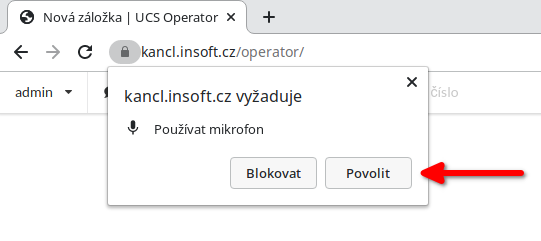
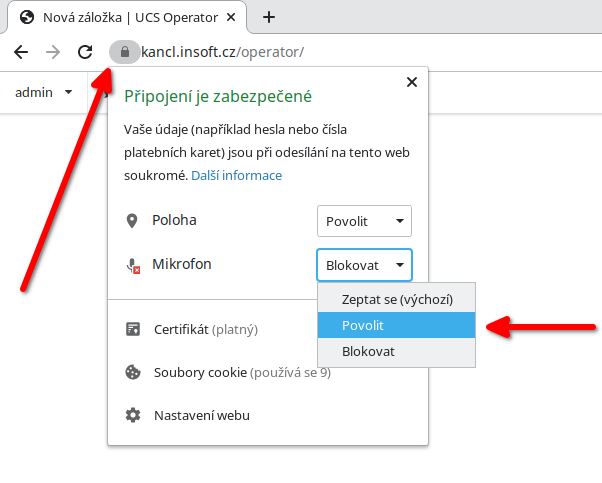
Allow microphone access. If the user is not prompted to allow the microphone, access may be blocked by a domain policy AudioCaptureAllowed; in that case, you need to add an exception using the key Software\Policies\Google\Chrome\AudioCaptureAllowedUrls.
-
Disable sleeping of inactive browser tabs. If the user switches to another tab, the browser will put the tab to sleep after 5 minutes, and JavaScript execution is triggered only once per minute. The browser then does not respond to incoming calls! You need to set the value 0 (false) for the key Software\Policies\Google\Chrome\IntensiveWakeUpThrottlingEnabled via domain policy.
-
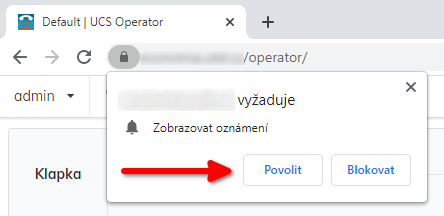
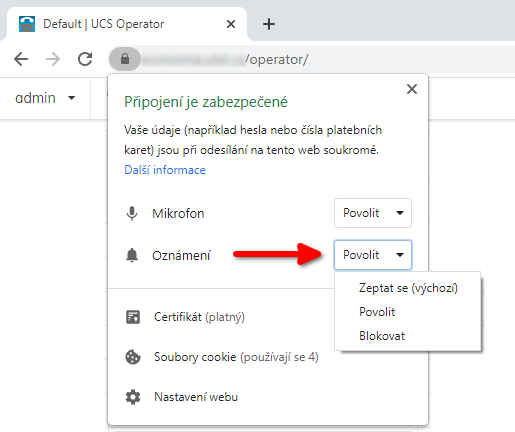
Allow sending system notifications with alerts about incoming calls and notifications about callers in the queue. If the user is not prompted to allow notifications, access may be blocked by a domain policy, and it is necessary to grant an exception using the key Software\Policies\Google\Chrome\NotificationsAllowedForUrls\1 with a REG_SZ value set to the PBX URL, e.g., https://ucs.company.com.
-
Allow autoplay so that the ringing sound is played even when the user is not interacting with the page (e.g., an accidentally closed and reopened browser where all previously open tabs are restored). Permission must be enforced via domain policy using the key Software\Policies\Google\Chrome\AutoplayAllowlist\1 with a REG_SZ value set to the PBX URL, e.g., https://ucs.company.com. Alternatively, autoplay can be allowed globally in the browser for all domains.
Verifying Settings
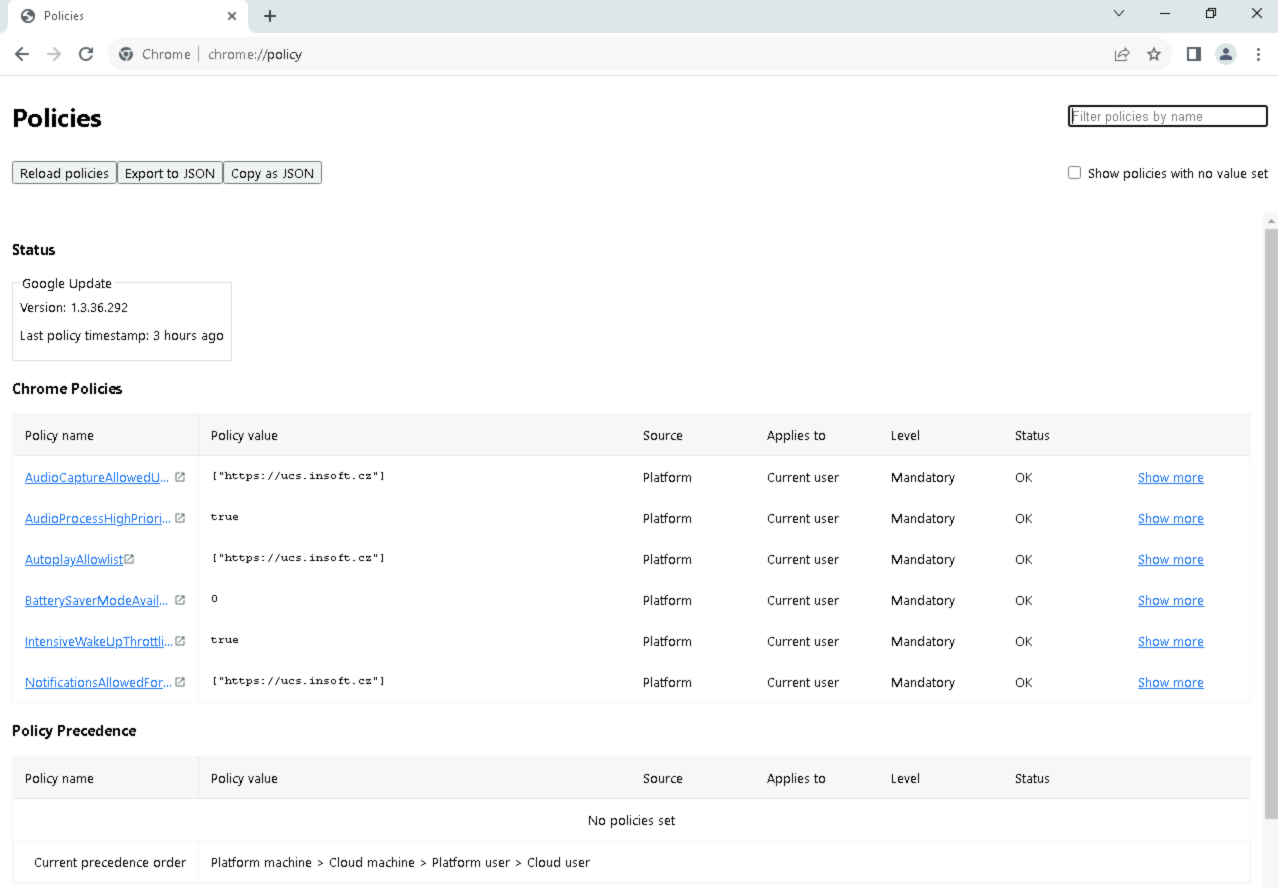
You can verify whether the settings from the domain policy (registry) have been properly applied to the browser by entering the address chrome://policy or edge://policy.
In the screenshot below, the domain ucs.insoft.cz is illustrative only; the value must be set to the domain under which users actually access the UCS operator application.
Troubleshooting
The application logs to the browser console, which can be opened using the F12 key. If you are troubleshooting a specific call, note down the time and phone numbers (caller and callee).
Incoming Calls Occasionally Don't Work/Don't Ring
If the user switches to another tab, the browser will put the tab to sleep after 5 minutes, and JavaScript execution is triggered only once per minute. From the user's perspective, the softphone "occasionally" doesn't ring, even though the user is working on the computer. It is necessary to disable Software\Policies\Google\Chrome\IntensiveWakeUpThrottlingEnabled via domain policy and set the other parameters mentioned in the installation summary.
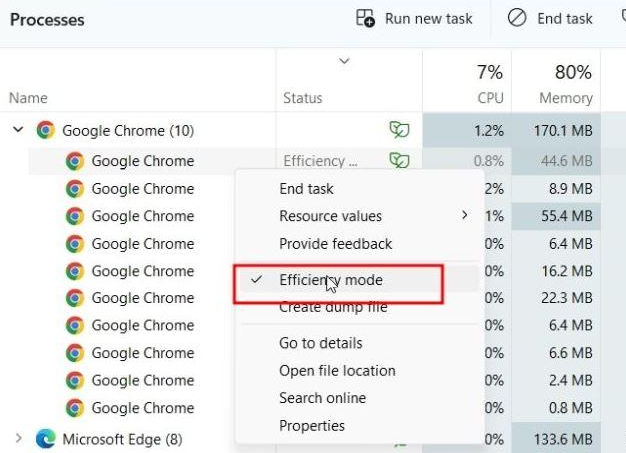
If you have the browser parameters configured to prevent tab sleeping and incoming calls still occasionally don't ring, the operating system may be putting the entire browser process to sleep. You can identify this by the green leaf icon next to the browser process in Task Manager. In that case, it is necessary to disable the Efficiency Mode feature, ideally centrally via domain policy.
Sound
| Icon | Meaning |
|---|---|
 | access to audio devices is not allowed, the software phone is not functional |
 | access to audio devices works, the software phone is running |
 | the software phone is running on another browser tab or on another computer |
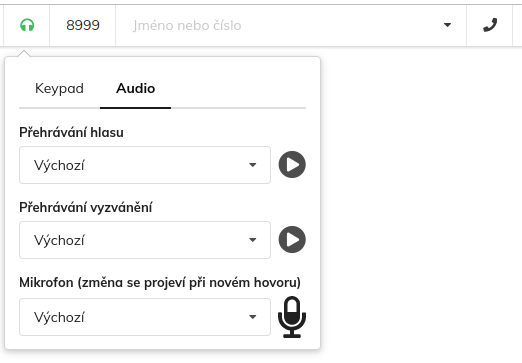
Clicking on the headset icon and selecting the Audio tab displays the device selection:
- Voice playback - the device through which the caller will be heard.
- Ringtone playback - the device on which incoming calls will ring.
- Microphone - the device into which the operator speaks.
Clicking on the arrow icon in the circle plays a test sound to the selected device. The microphone icon indicates the volume level of sound in the microphone (the icon fills up and down as you speak into the microphone).
If audio devices still don't appear in the selection despite allowing microphone access in the browser, an antivirus program or domain policy may be blocking access to them. Check the settings of your antivirus program and verify that the keys Software\Policies\Google\Chrome\AudioCaptureAllowed and Software\Policies\Google\Chrome\AudioOutputAllowed are not disabled in the domain policy.

If audio quality issues persist despite ruling out data loss on the network, the problem may be with CPU load on the operator's computer. In that case, you can increase the priority of the audio processing process using the key Software\Policies\Google\Chrome\AudioProcessHighPriorityEnabled with a REG_DWORD value set to 0x00000001.
Especially when working from home office, silent calls may occur if the internet connection is overloaded (e.g., downloading large files). For basic connection quality monitoring, it is sufficient to run a ping from the operator's computer to the UCS server. Packet loss must be below 1% and RTT (round-trip time) must be under 80 ms.
Poor Audio Quality at the Beginning of a Call
If clients complain that they cannot understand or hear the operator's introduction at all, the problem may be a reduced microphone gain (volume) in Windows settings (right-click on the speaker in the system tray → Sounds → Recording → select the headset microphone → Properties → Levels → set the level to approx. 80).
The operator application by default leaves Windows AGC (Automatic Gain Control) enabled, which regulates the microphone gain based on voice level. With a reduced
microphone gain setting, AGC will gradually increase it, but this takes a second or two, which is why the operator's greeting is not heard (the greeting triggers the automatic amplification,
and subsequent speech is fine). If problems with poor voice quality at the beginning of calls persist, it is possible to set the parameter
autoGainControl: false in the operator application's config.js. This requests the Windows audio subsystem not to automatically adjust the microphone gain.
Application Disconnections
If the application regularly disconnects from the server after a certain period of time, then an antivirus program or firewall is closing the WebSocket connection. The following is then recorded in the browser log:
2021-04-11T11:54:21.226Z Connecting to wss://ucs.company.com/ws 2021-04-11T11:54:21.452Z Connected 2021-04-11T11:58:01.277Z No heartbeat received for 35s, closing socket!
Phone Is Not Registered with the PBX
If an error message appears when attempting to make a call stating that the phone is not registered with the PBX, then the software phone failed to start. The most common cause is microphone access being blocked in the browser.
If microphone access is allowed in the browser, an antivirus program may be blocking the browser's access to audio devices. The following message then appears in the browser console:
DOMException: Requested device not found Acquiring media devices is not allowed.
Another cause may be a WebSocket connection towards UCS being terminated or blocked by the firewall. Look for the following message in the log:
2021-04-11T22:00:37.109Z sip.Transport: WebSocket opened wss://ucs.company.com/sip
and repeated OPTIONS/200 OK messages every 30 seconds, which the PBX uses to verify that the softphone is still reachable:
2021-04-11T22:01:37.260Z sip.Transport: Received WebSocket text message: OPTIONS sip:bb8q7rl6@127.0.0.1:59750;transport=ws SIP/2.0 2021-04-11T22:01:37.268Z sip.Transport: Sending WebSocket message: SIP/2.0 200 OK
System Notifications Are Not Displayed or Calls Cannot Be Connected from Them
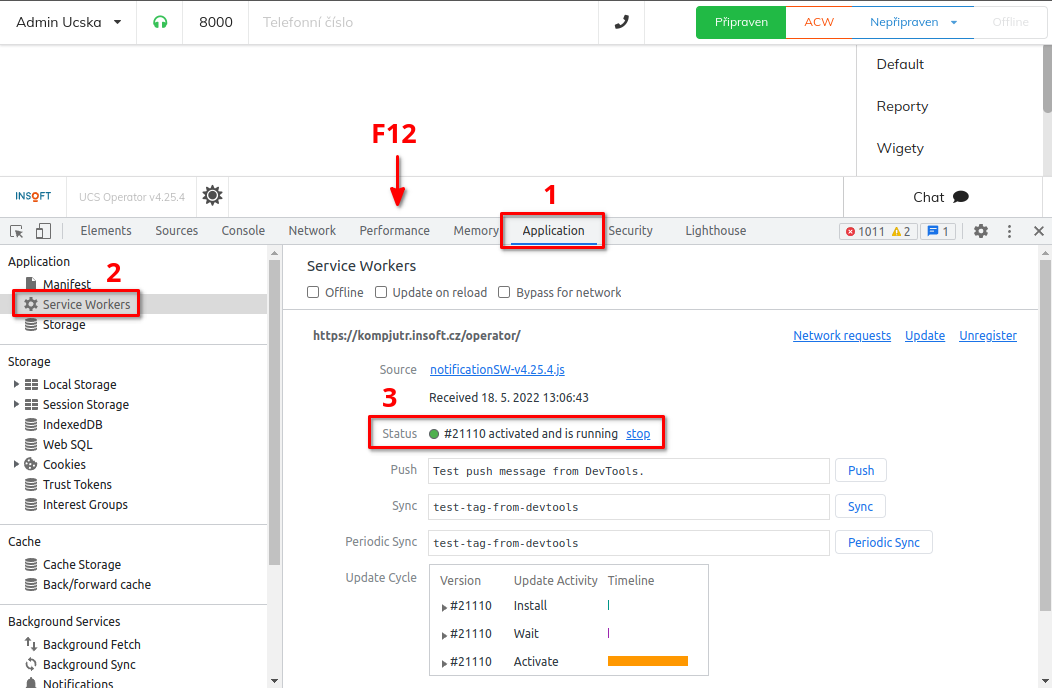
Check that sending system notifications is allowed. Also verify that the service worker is functional. In the browser, press F12 to open the console, select the Application tab [1], select Service Workers [2] in the left menu, and verify that the Status is activated and is running [3]. Also verify that Bypass for network is not checked.
401 Unauthorized
If a 401 Unauthorized message is recorded in the log, it most likely does not indicate an error. SIP phone registration with the PBX is a two-phase process. In the first phase, the softphone sends a registration request without a username and password. The PBX responds to this request with a challenge containing a generated one-time string (nonce), and only based on this string is the SIP phone able to encode the password and perform authentication. The following messages in the log indicate completely normal operation:
2021-04-11T22:10:37.143Z sip.Transport: Sending WebSocket message: REGISTER sip:ucs.local SIP/2.0 2021-04-11T22:10:37.193Z sip.Transport: Received WebSocket text message: SIP/2.0 401 Unauthorized 2021-04-11T22:10:37.208Z sip.Transport: Sending WebSocket message: REGISTER sip:ucs.local SIP/2.0 2021-04-11T22:10:37.250Z sip.Transport: Received WebSocket text message: SIP/2.0 200 OK
Sound Subsystem Error
If the message "Sound subsystem error. Please contact your IT department." is displayed, something is blocking the browser's access to the Windows audio subsystem.
-
It could be another audio application that has requested exclusive access to the microphone.
-
An antivirus program (or another security application) is blocking microphone access.
-
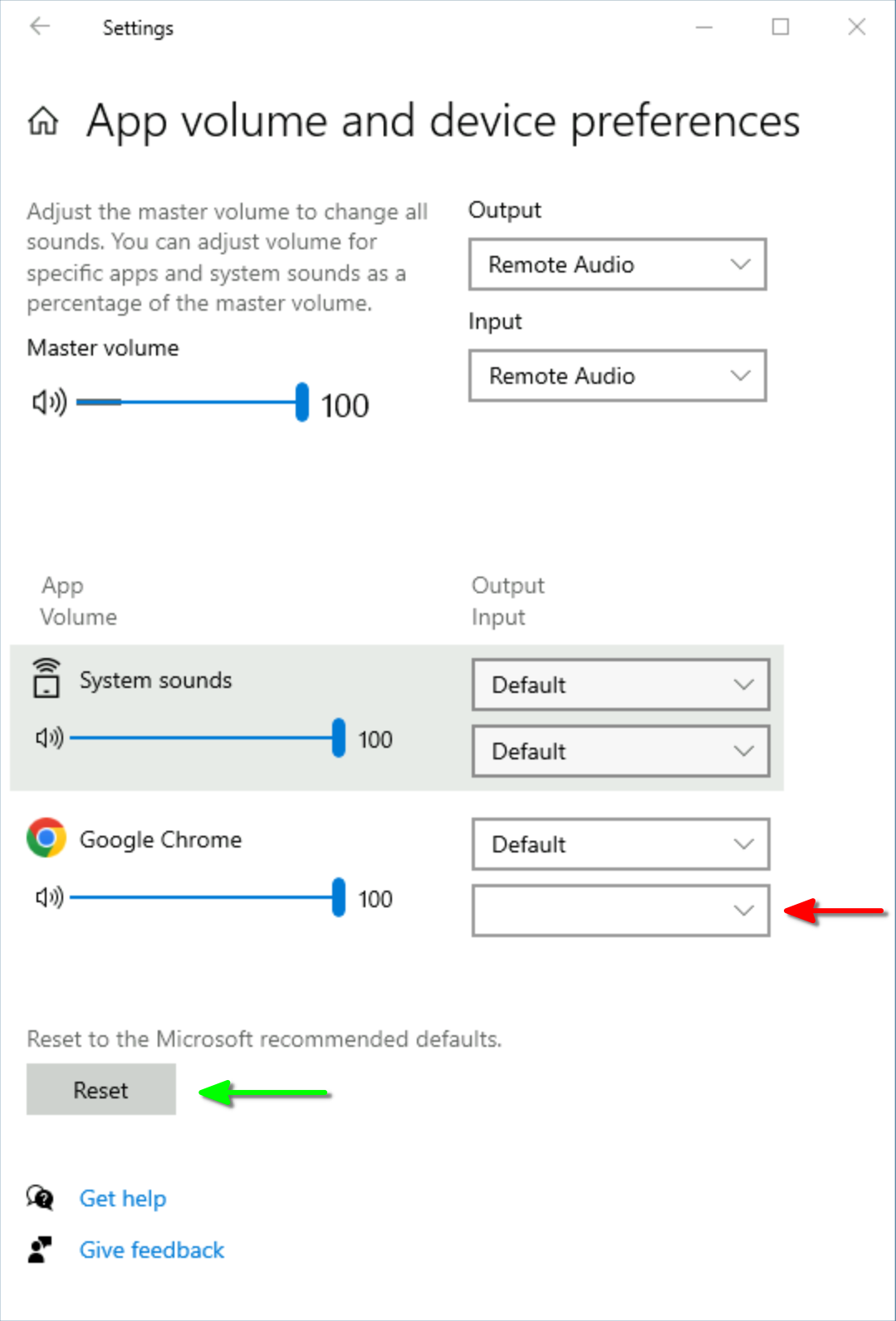
The problem may be in Windows settings; you need to check the sound settings for applications. Start → Settings → System → Sound → App volume and device preferences. If Chrome/Firefox/Edge is not listed, you need to click the Reset button. Windows will repopulate the input/output entries for the browser.
Capturing WebRTC with Wireshark
If voice quality deteriorates irregularly, it is necessary to capture the network communication between the operators' computers and the UCS server. This utilizes the port mirroring function on the switch and a computer running the network analyzer application Wireshark.
Don't forget to configure the laptop used for capturing traffic so that it doesn't go to sleep. Always keep it plugged into a power adapter to prevent it from switching to power-saving mode.
It is advisable to proceed using the principle of bisecting the network path, i.e., first deploy Wireshark on the switch to which the operators' computers are connected, then before/after the firewall, and finally in front of the virtualization platform on which the UCS server runs.
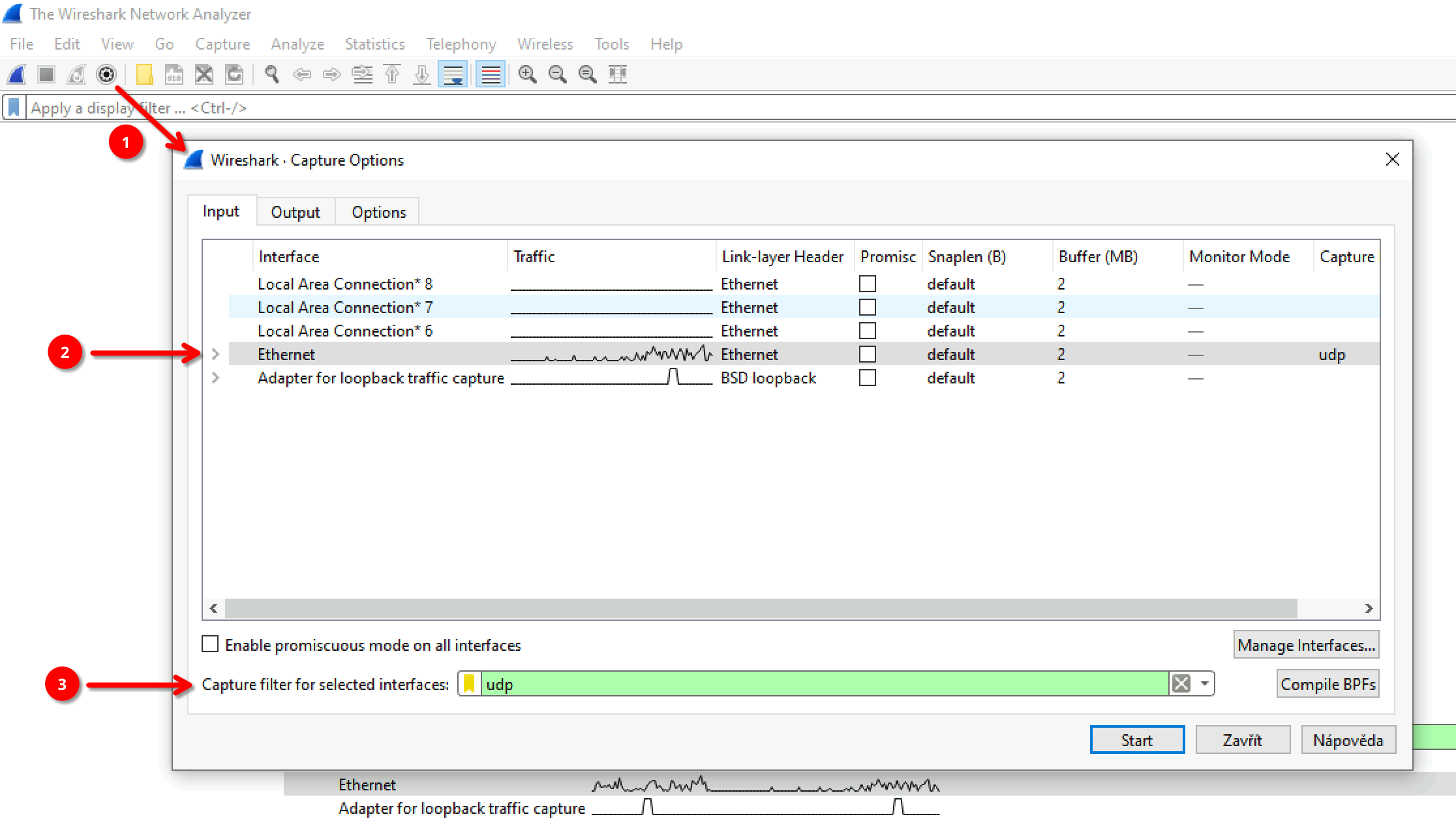
- Click on the capture options icon.
- Select the interface through which the Wireshark laptop is connected to the port that mirrors traffic from the operators' computers.
- Enter "udp" in the capture filter.
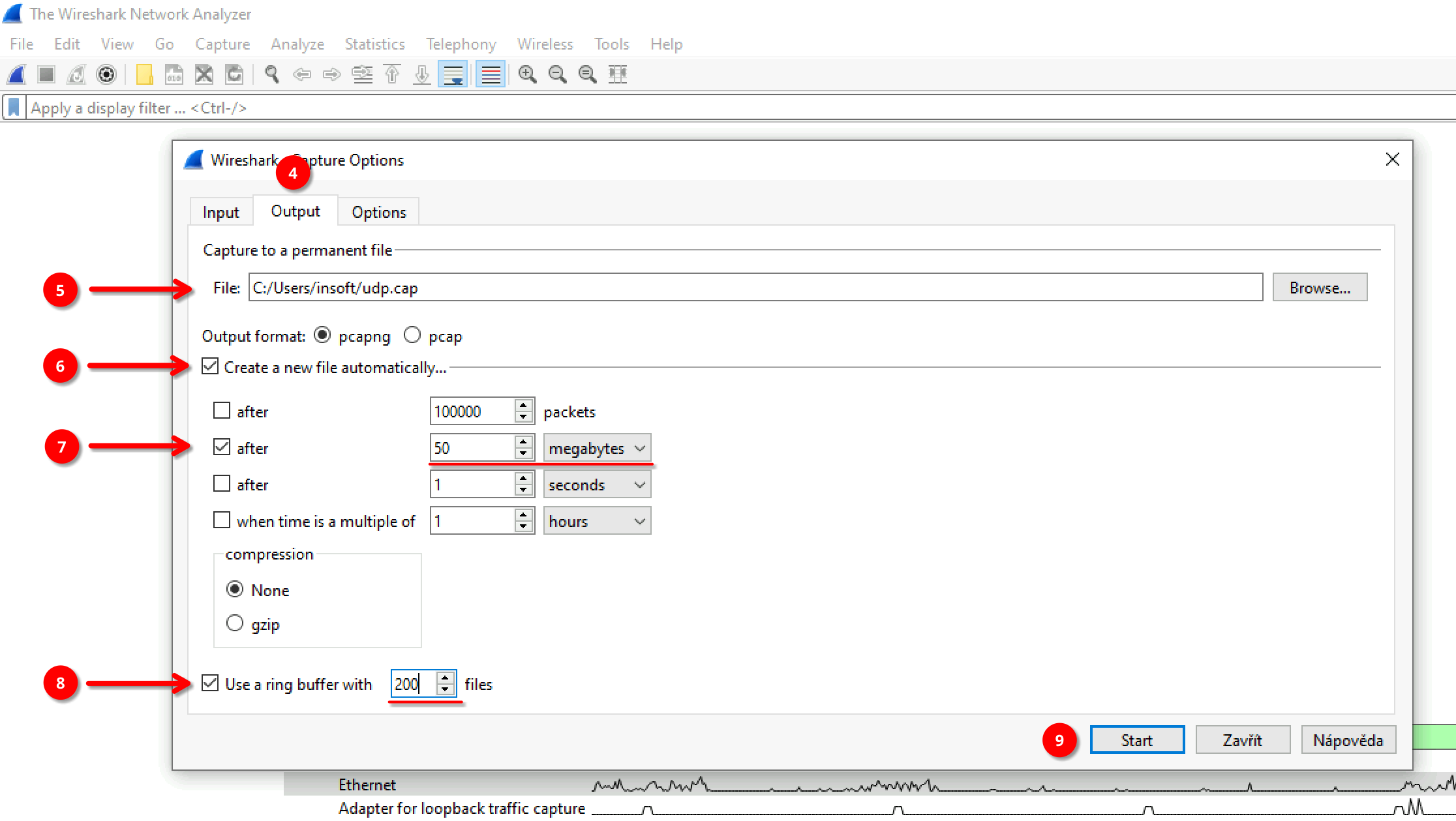
- Switch to the output tab of the capture settings.
- Select the path and file name where the data will be saved (Wireshark will use it as the base file name, appending a sequence number and the date/time when writing to the file began).
- Check the option to create new files when one of the conditions below is met.
- Set file rotation after the file size reaches a certain size (e.g., 50 MB).
- Set the file history to retain (e.g., a maximum of 200 files; at 50 MB each, this takes up a maximum of 10 GB of disk space).
- Start capturing traffic.