Dialing and receiving calls
The operator application enables dialing and receiving calls on the paired IP phone or via the integrated softphone. Calls are controlled using this part of the top bar of the application:

- headphone icon is displayed when using a softphone
- 8000 is the number of the currently paired phone
- Name or number is used to enter a phone number or search for a contact, if contact suggestions are not enabled in the operator application settings, the field shows the text Phone number
- handset icon is used to dial the entered phone number
| Icon | Meaning |
|---|---|
 | access to audio devices is not allowed, the softphone is not functional |
 | access to audio devices works, softphone is running |
 | the softphone is running on a different browser tab or on a different computer |
Incoming call
An incoming call can be picked up using the button with the green handset icon. The call cannot be rejected. The current ringing time is also displayed. If the call comes through a call center queue, the ringing time includes the time the caller waited in the queue.

After the call is connected, the following icons will be displayed:

- The blue arrow indicates an incoming call.
- If the call was received through the call center queue, then a gray box (it can also be colored depending on the server settings) indicates the name of the queue.
- The name of the caller if found in the database.
- Caller's phone number.
- Hang up the call.
- Hold the call (call hold), music starts playing to the caller.
- Call transfer.
- Turn off the microphone.
- Current call duration.
If, during a ringing or connected call, you click with the left mouse button in the field in which the phone number of the call is displayed, then it will be copied to the clipboard and subsequently it can be pasted elsewhere using the keyboard shortcut Ctrl+V.
Outgoing call

- The green arrow indicates an outgoing call.
- Called phone number.
- The call can be ended during dialing or ringing.
- The microphone can be turned off already when dialing a call. After connecting the call, it is then necessary manually turn on the microphone (connecting a call does not automatically activate it).
- Current dialing duration. After the call is connected, the timer resets and shows the talk time.
If enabled in operator application settings, you can choose which campaign the outgoing call will be made through before dialing. If the Direct option is selected, then the call will be made outside the campaign (will not be included in the statistics and the caller's number will be set according to the outgoing filter in the UCS administration).

Call transfer
Two basic types of call switching are supported:
- Blind transfer immediately ends your call with the transferred party, who hears ringing or a busy tone depending on the state of the phone the call was transferred to, or music if it was transferred to a call center queue.
- With consultation music starts playing to the transferred party. The transferring agent hears the phone ringing where the call is being transferred. Once the target person answers, a consultation takes place (telling them who is being transferred and why). The transfer is completed by pressing a button: the music stops for the transferred party and they are connected to the target person. The consultation part of the call ends automatically.
Call transfer is started by pressing the button with the arrow icon:

The options for transferring the call will be displayed, or the address book will open automatically with contacts for transfer. You can still talk to the transferred party during this step.

- Field for entering the phone number to which the call should be transferred.
- Opening the address book with contacts for transfer.
- Blind transfer. After pressing this button, the call disappears from the operator application and the transfer is complete.
- Transfer with consultation. Pressing this button continues the transfer process, see below.
- Cancellation of transfer (return to call).

- Interrupting the consultation part and returning to the original call.
- Completion of the consultation and transfer of the original call to the target user.
You can cancel or complete the consultation part of the call even while it is ringing.
To the target user, the transferred call is displayed with an arrow in a blue circle:

Directory with contacts for transfer (individual sections Agents/Projects/Additional contacts may not be displayed unless enabled for the agent team in UCS administration):
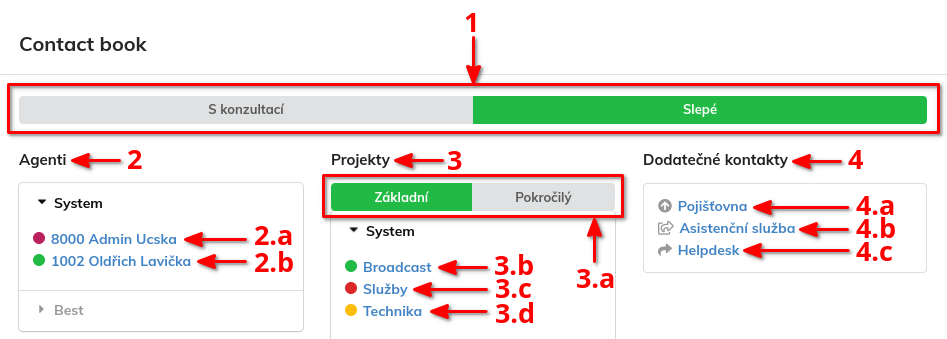
- Switch of the transfer type that will be used after clicking on the given contact.
- Transfer to a specific agent.
- a. A red circle indicates that the agent is speaking.
- b. A green circle indicates that the agent is ready to take the call.
- The colors match the set colors in the agent team. If, for example, it is light blue color set for Not Ready - Lunch, then the circle will be light blue for agents who are currently at lunch.
- If the target agent switches to a different state during switching, the change is immediate will appear in the list.
- Transfer to a project (queue).
- a. The switch determines the required skill of the agents to whom the connected call will be routed.
- b. A green circle indicates that there is at least one agent in the given queue who can answer the call immediately (it is in ready state).
- c. The red circle indicates that there is not a single agent in the ready state in the queue.
- d. A yellow circle indicates that at least one agent in the given queue is ready, but is currently on a call.
- Transfer to additional contacts set up for the agent team in the UCS administration.
- a. The icon indicates that the transfer will use the type selected in this dialog.
- b. The icon indicates that the UCS administration enforces a transfer with consultation for this contact.
- c. The icon indicates that the UCS administration enforces a blind transfer for this contact.
Key Shortcuts
The following shortcuts can be used to control:
| Key | Action |
|---|---|
Enter | Make a call for the specified number |
F2 | Pick up the call |
F4 | Hang up |
F7 | Mute Call |
F8 | Transfer call blindly |
F9 | Transfer call to consultation |