E-mails
Customer e-mails are handled the same way as calls: as a team, through queues. Each mailbox of your company delivers its e-mails into an e-mail queue, and the agents of that queue reply to them. Setting up mailboxes and queues is described in the administration documentation.
You work with e-mails in the E-mail allocation widget. It lists the e-mails of your queues, and every e-mail you open there gets its own tab.
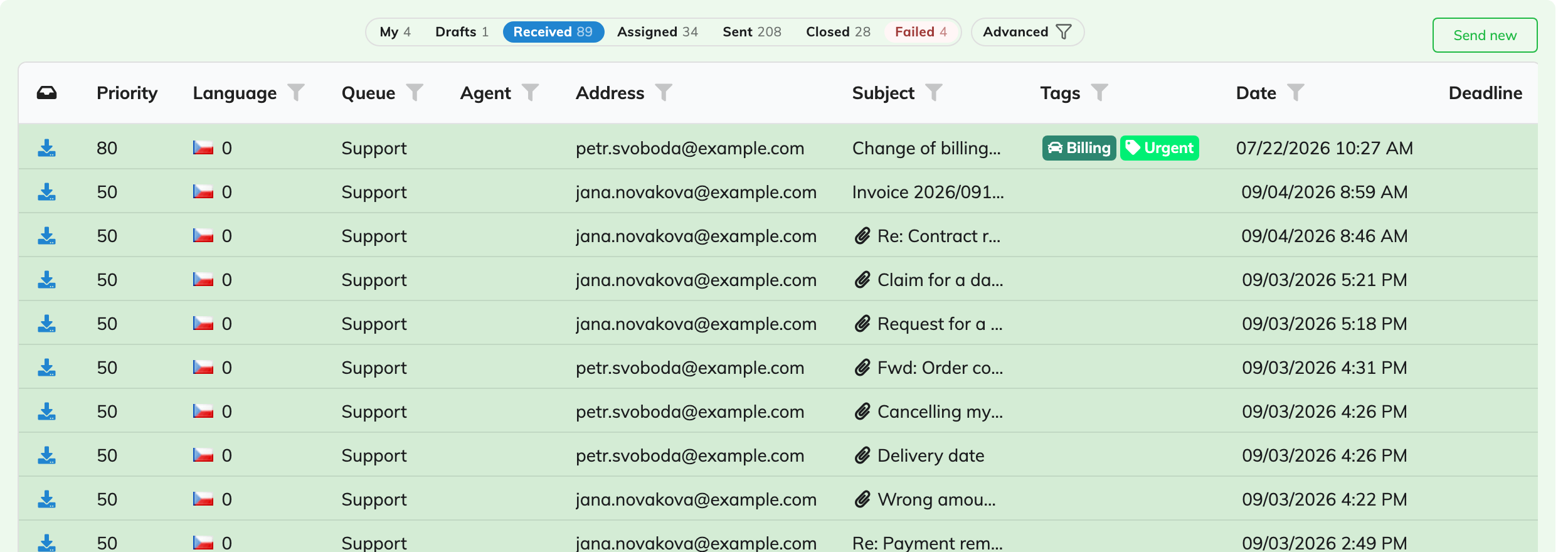
How e-mails reach you
Your agent team decides how e-mails are shared out, with two numbers:
- Minimum assigned e-mails to one agent – the system keeps at least this many e-mails assigned to you, topping you up from the queues as you finish them, while you are Ready with e-mails switched on (see below). If it is 0, nothing is assigned automatically and you take e-mails yourself.
- Maximum assigned e-mails to one agent – you never have more e-mails assigned than this, however they were assigned. If it is empty, there is no limit.
To take an e-mail yourself, open a New one from the list – it is assigned to you as it opens. Once you have reached your maximum, e-mails open for reading but are not assigned to you.
A supervisor can also assign e-mails to you directly.
Whether you receive e-mails at all is part of your Ready status: the Ready button lets you switch the Emails channel on and off.
Finding your e-mails
The buttons above the list filter it. The ones you will use most:
- My – incoming e-mails assigned to you that still need handling,
- Drafts – e-mails you are writing and have not sent yet,
- Received – everything waiting in your queues, assigned to anyone,
- Failed – e-mails that could not be sent; shown only when there are some.
The number on each button is updated live.
Advanced filter
The buttons cover the everyday cases. For anything else – an e-mail you answered last week, a reply that never went out – open Advanced and combine:
- State – e.g. replied for answered e-mails, closed for those closed without a reply, unsent for replies still waiting to be sent,
- Direction – inbound for e-mails from customers, outbound for e-mails sent by agents; the states on offer change with it, e.g. sent instead of replied,
- Language.
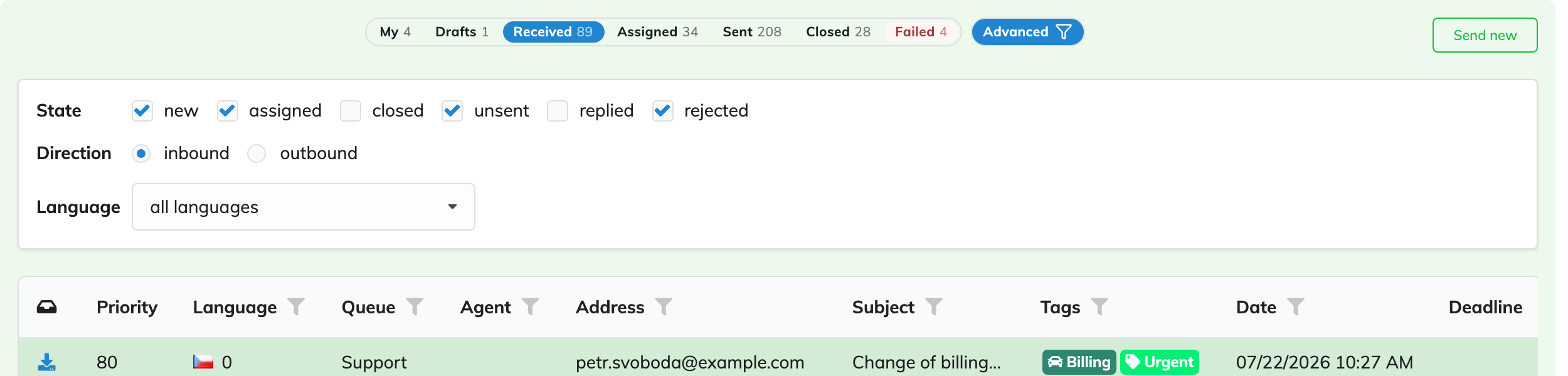
Each column of the list can also be filtered on its own, using the funnel icon in its header: by queue, agent, address, subject, tag or the date the e-mail arrived.
Searching
To find an e-mail without knowing where it is, use the search box in the upper bar, or press Cmd+K (Ctrl+K on Windows) to jump into it. Type at least three characters of:
- a word from the subject or the text of the e-mail,
- an address – the sender's, or any recipient's, including copies.
The search covers the CRM too, so the customer's record is offered first, followed by the matching e-mails and tasks. Choosing an e-mail opens it in a tab.
<img src={require('./email-search.png').default} alt="Search results" width="300" />
Handling an e-mail
An e-mail goes through these states:
| State | Meaning |
|---|---|
| New | Waiting in the queue, nobody is working on it. |
| In progress | Assigned to an agent who is handling it. |
| Replied | Answered. |
| Unreplied | Closed without a reply. |
Outgoing e-mails – replies, forwards and new e-mails – are Queued while the system sends them, then Sent, or Rejected if sending failed.
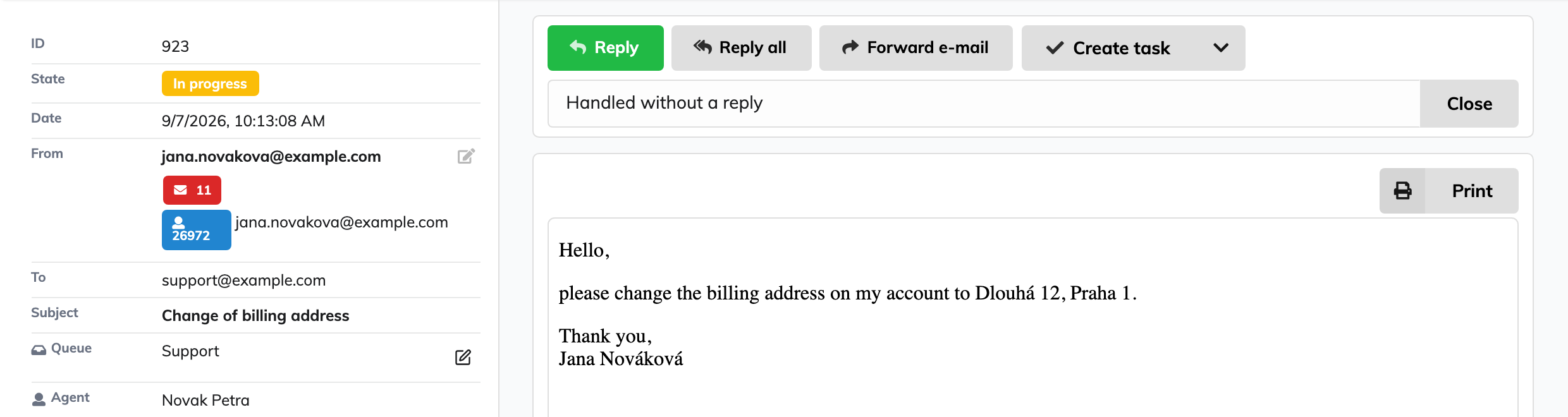
When you open an e-mail you can:
- reply – Reply, Reply all or Forward e-mail starts a draft. It is saved as you write, so you can close the tab and come back to it under Drafts. Templates save you typing; see E-mail templates.
- close it without a reply – for spam, a thank-you or anything else that needs no answer. Write the reason and press Close.
- put it back – if you cannot handle it, give a reason and press Put back. The e-mail returns to the queue as New for someone else.
- move it to another queue – change its Queue, e.g. when it reached the wrong department.
- create or link a task – when it needs work that cannot be done right away; see E-mails and tasks.
The e-mail's history shows everything that happened to it: who had it, state changes, replies and notes. Use Note to history to leave a note for colleagues.
Attachments
Attachments are listed next to the text of the e-mail.
- Preview – point at an attachment's icon to see it without opening it. Images, PDFs and videos are shown, and for a zip archive the list of files inside.
- Open – click the attachment to open it in a new window.
- Download – hold Option (Alt on Windows) while clicking to download it straight away.
<img src={require('./email-attachment-preview.png').default} alt="Preview of a zip attachment" width="450" />
Download all saves every attachment at once, packed in a zip named after the e-mail's subject. The arrow next to it offers the other ways: each file separately instead of a zip, and either of them including inline attachments.
<img src={require('./email-attachments.png').default} alt="Download options" width="420" />
Inline attachments are images placed in the text itself, typically logos in a signature. They are listed separately and left out of downloads unless you choose an option that includes them.
To attach files to your reply, drop them onto the reply or click the area for attachments and choose them.
The customer
The e-mail is linked to the customer's record in the CRM by the sender's address. If the sender is not recognised, or the wrong person is linked, change the person in the e-mail's details.
Writing a new e-mail
Send new in the widget starts an e-mail that is not a reply. Choose the queue to send it from – that decides which sender addresses you can use – and the recipients. You can also start one from a customer's record in the CRM or from a task.
For supervisors
In the supervisor view of the widget you can select e-mails and:
- Allocate them to the agent chosen next to the button,
- Return them to the queue, without an agent,
- Close selected – close incoming e-mails without a reply.
In an e-mail's details a supervisor can also change the Agent it is assigned to.
Whether the widget shows the agent or the supervisor view is set in its settings.