E-mails and tasks
Not every e-mail can be settled with a reply. When it needs work that takes longer – checking a claim, waiting for another department – turn it into a task in the CRM, or link it to a task that already exists. The e-mail and the task then show each other in their history, so whoever picks up either one sees the whole story.
Creating a task from an e-mail
Create task opens a new task filled in from the e-mail: its subject, the customer and a link back to the e-mail. Check the details and save the task.
Your administrator may have connected your team to an external task system instead. Create task then opens that system, and linking tasks as described below is not available.
Linking an existing task
When the task already exists – the customer is writing about a case that is open – choose Link task from the menu next to Create task.
The list offers the customer's tasks first. Search by task name or by its number,
e.g. T#18296, or narrow the list to Only my tasks. Closed tasks are left out
unless you tick Include closed.
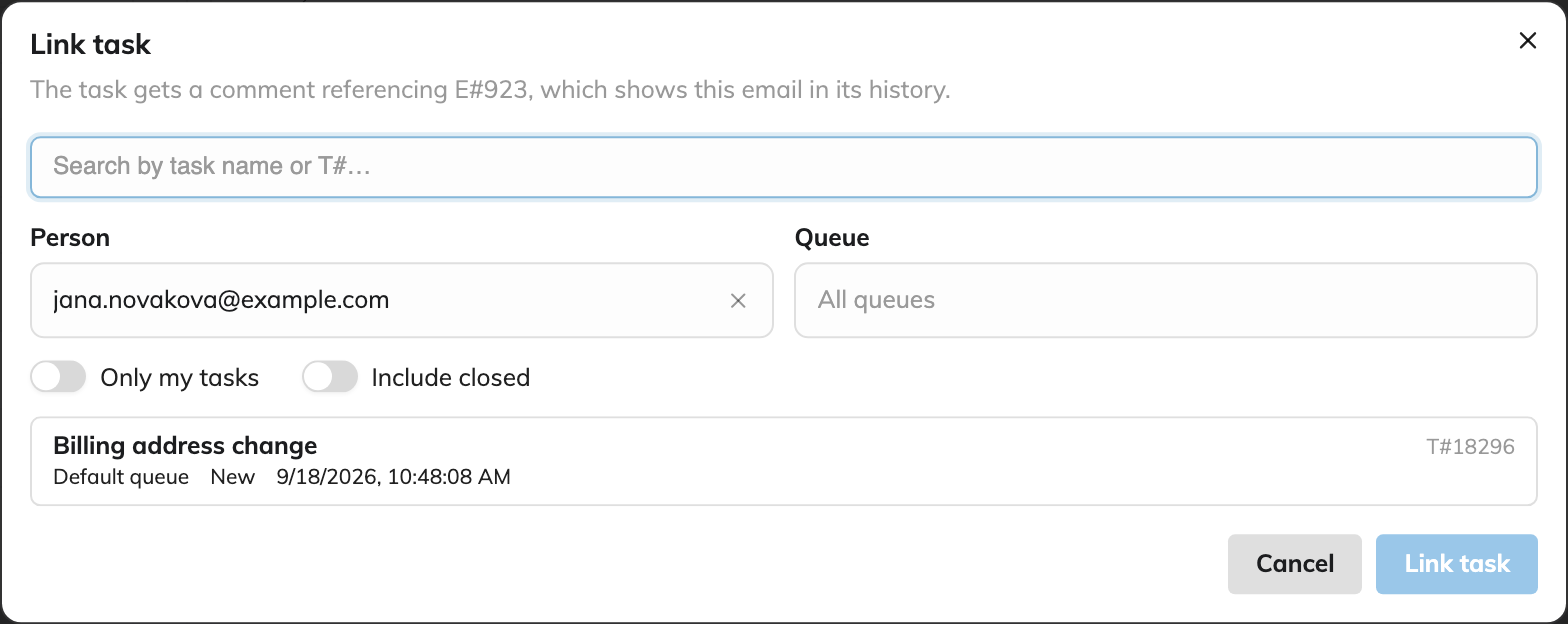
Linking adds a note to the task's history pointing to the e-mail, and a note to the e-mail pointing to the task. The linked task is then listed under Linked in the e-mail's details. There is no action for removing a link, so check you have the right task before linking.
Sending an e-mail from a task
It works the other way round too: Send e-mail in a task starts a new e-mail linked to that task, so the reply to the customer is part of the task's history.